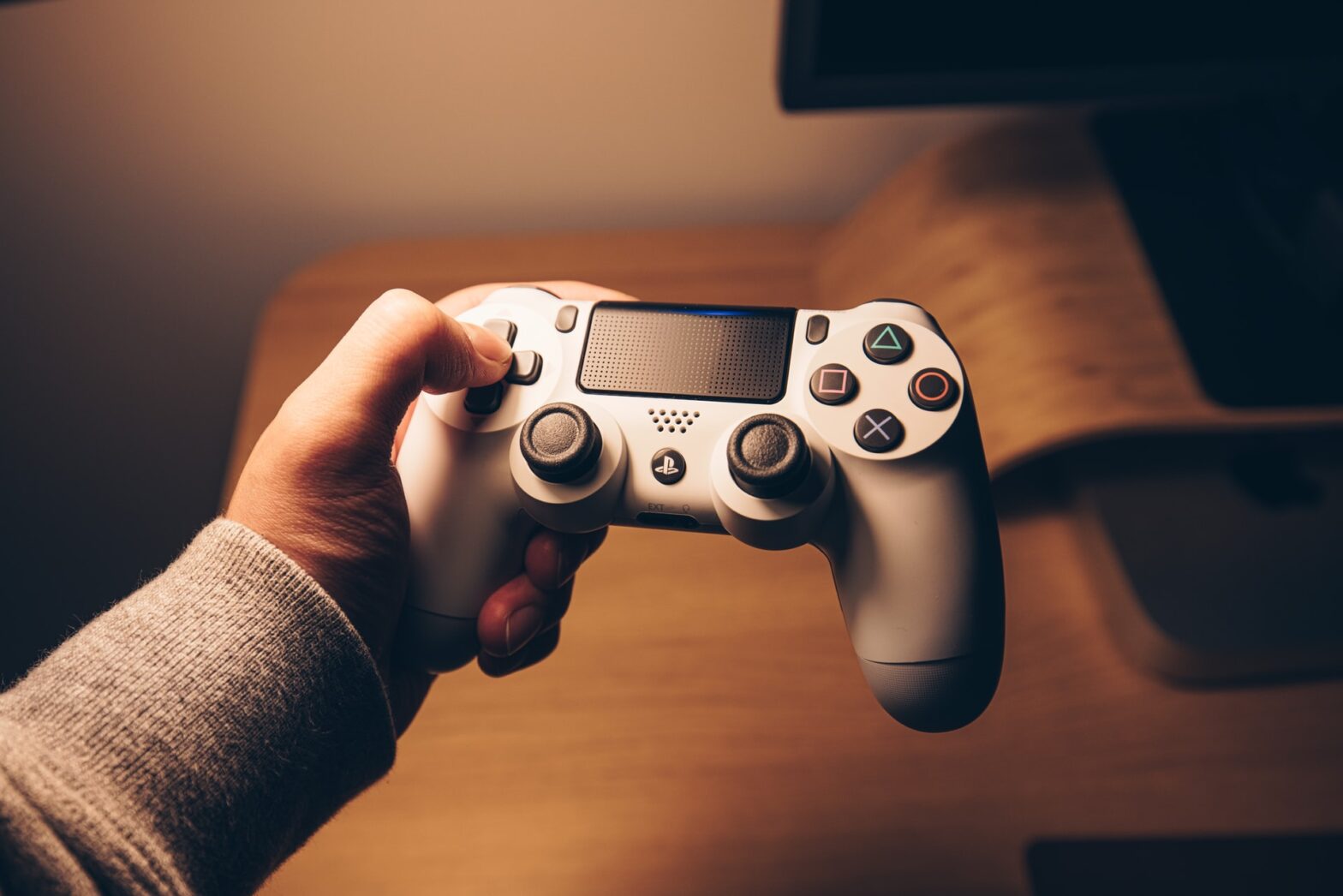
Would you like to know how to change the brightness on a PS4? There are likely some gamers who are unaware of the secrets that are hidden by this console. One of these hidden features is the ability to adjust the brightness of your PlayStation 4.
The brightness may be adjusted on your PlayStation 4 by pressing the “OPTIONS” button on the controller. After you’ve reached “Settings,” click on “Display Settings” to access the display options. By dragging the slider to the left or right of this area, you will be able to change the brightness of your screen.
Now, let’s look at adjusting the brightness on a PS4 console.
What Is PS4?
As one of the eighth generation of video game consoles, the PS4 was made available for purchase by Sony in the latter half of 2013. The PS4 is a successor to the PlayStation 3 and the hugely successful PlayStation 2.
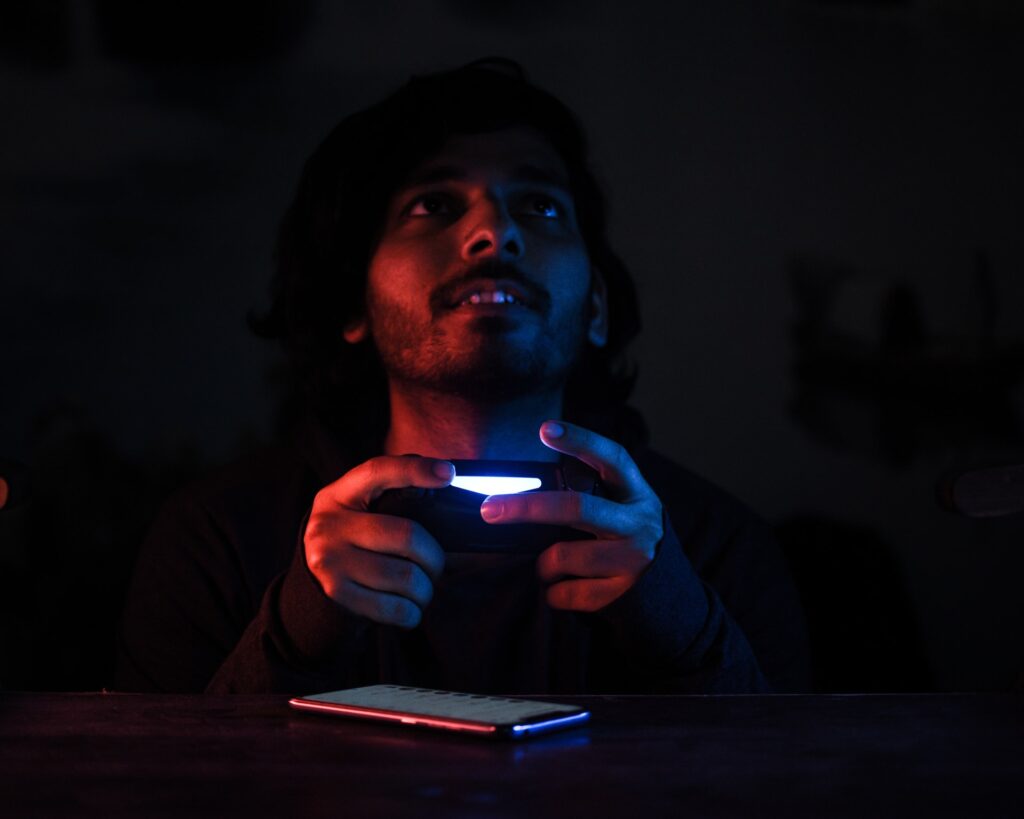
In 2016, Sony introduced two new PS4 versions, the Slim and the Pro, both with a smaller frame and more power. This controller’s sticks are more user-friendly, and its triggers allow for more control. Chargeable controllers have a share button for uploading games and screenshots to social media sites like YouTube and Facebook.
An additional feature of the DualShock 4 is a customizable light bar on top that changes color while you play. The “Share” button may also be used as a touchpad, giving it additional versatility across various titles.
The PS4 can be controlled by more than just the controller. The PS4 system can communicate with smartphones, tablets, and the portable PlayStation Vita console to control functions such as media.
How To Change The Brightness On A PS4
“Limited” is often set as the PS4’s default brightness level, but users can change it if they wish.
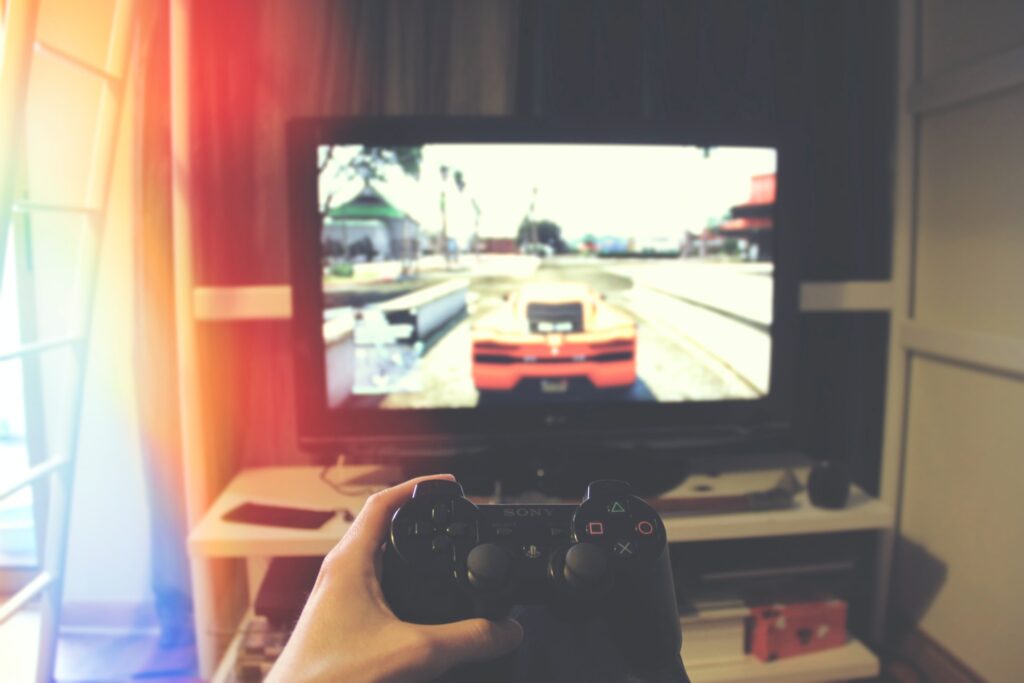
Increasing the RGB component to its maximum will solve the problem and produce more “vivid colors.” Here are the steps involved in changing the brightness on a PS4.
- You may access the Settings icon on the PlayStation 4 by navigating to the second menu and selecting it.
- Within the newly introduced menu, scroll down until you reach the sound and screen settings.
- Navigate to the first option on the new menu, which should be labeled “Video Output Settings.”
- After that, select the second choice, RGB or (RGB Range).
- Select “Full” from the drop-down selection that appears.
Once you complete this step, the screen will flash, and you’ll see that the colors have altered and grown brighter than they had previously been. This applies to both the device’s UI and the games you play.
Conclusion
Nearly half of their waking hours are spent staring at a game screen, so keeping the brightness level right is critical. In the same way that too much light harms your eyes, too little light can strain them.